Reach internal workloads locally
Choose a pod or workload, map a local TCP port to its remote port, and keep the active kubectl port-forward session visible until you stop it.
 ClusterDeck
App Store ↗
ClusterDeck
App Store ↗
Port forwarding, logs and console for macOS
Start Kubernetes port forwards, stream live pod logs, and open integrated container consoles without rebuilding the same kubectl commands every time. ClusterDeck keeps each session beside the pod, workload, YAML, and events you are investigating.
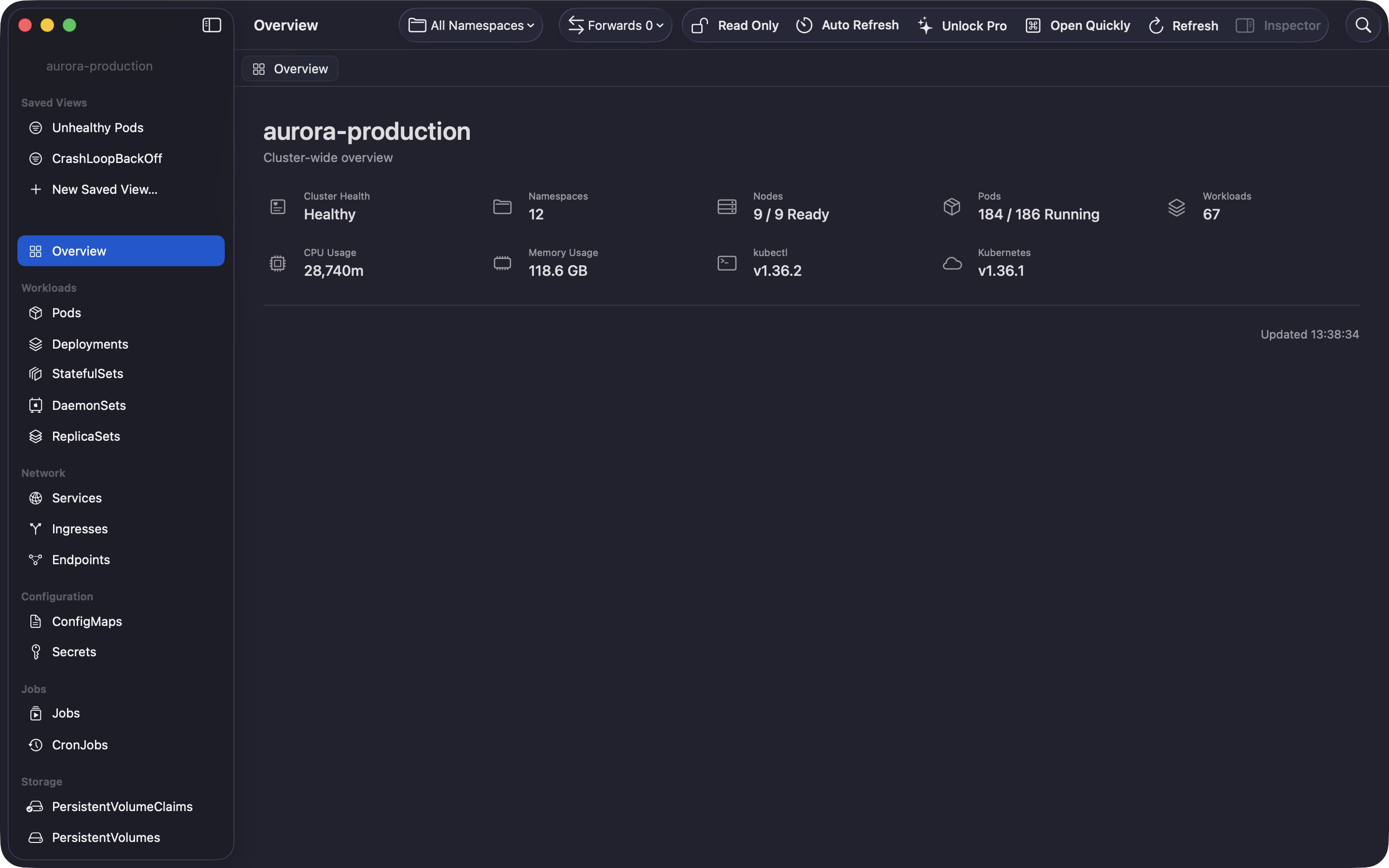
Port forwardsLocal access to cluster workloads
Live logsContainer-aware streaming and filters
Pod consoleIntegrated interactive kubectl exec
A focused Kubernetes debugging workspace
Move from a workload to its pods, choose the right container, then start a port forward, follow its logs, or open an interactive console. The active cluster, namespace, resource, and session stay visible.
Choose a pod or workload, map a local TCP port to its remote port, and keep the active kubectl port-forward session visible until you stop it.
Choose a container, follow output, set tail length and time range, filter text, auto-refresh, and wrap long lines in a persistent workspace tab.
Start an integrated kubectl exec console for a selected pod and container, alongside its logs, YAML, status, and recent events.
Kubernetes port forwarding
Pick the Kubernetes resource and remote TCP port, choose the local port on your Mac, and start the session. ClusterDeck binds the listener to localhost and shows the mapping and session state in one place.
Read the port-forward guide →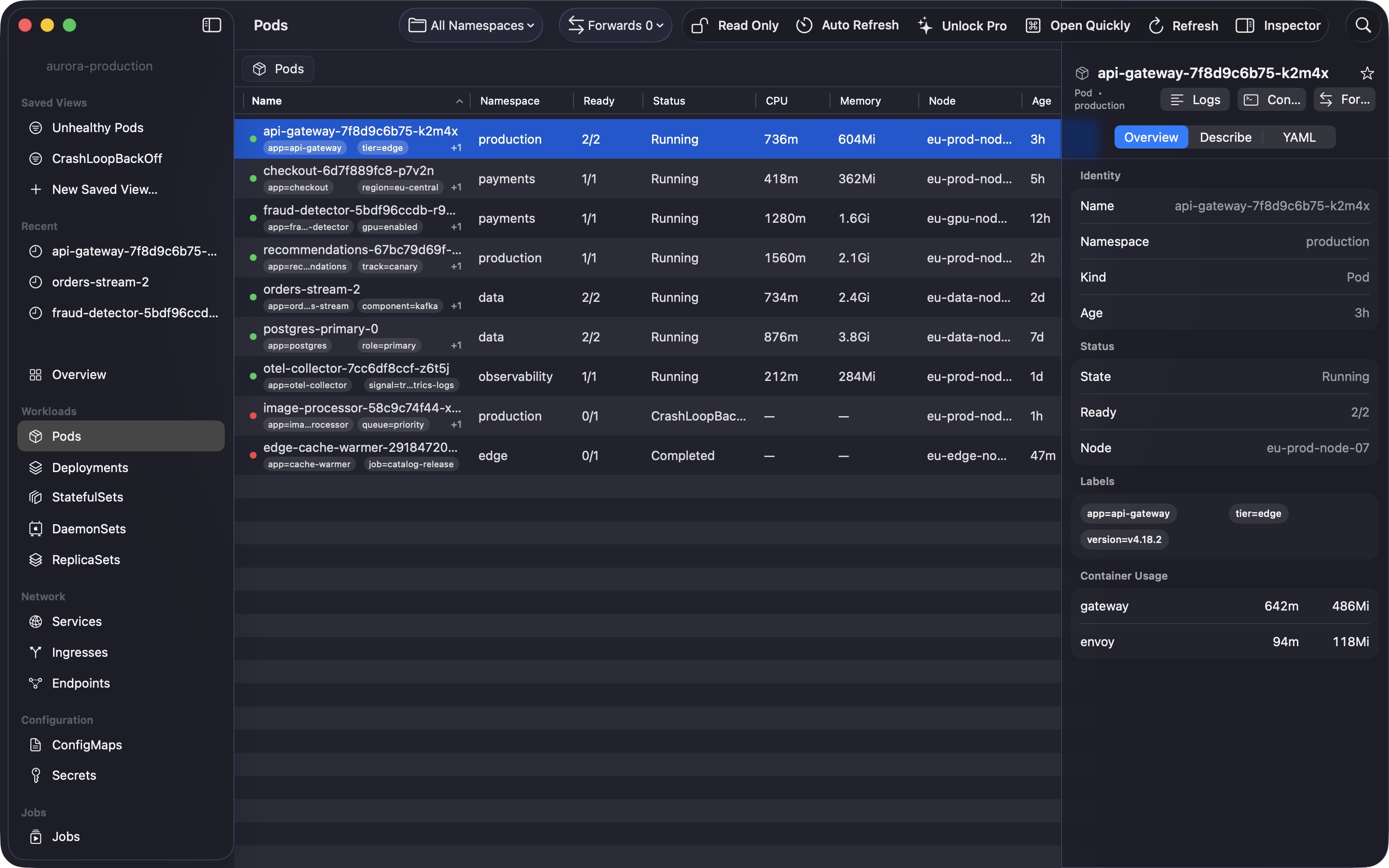
Pods
The pod table shows readiness, status, labels, CPU, memory, node, and age. Filter and sort the table to find unhealthy or resource-heavy pods.
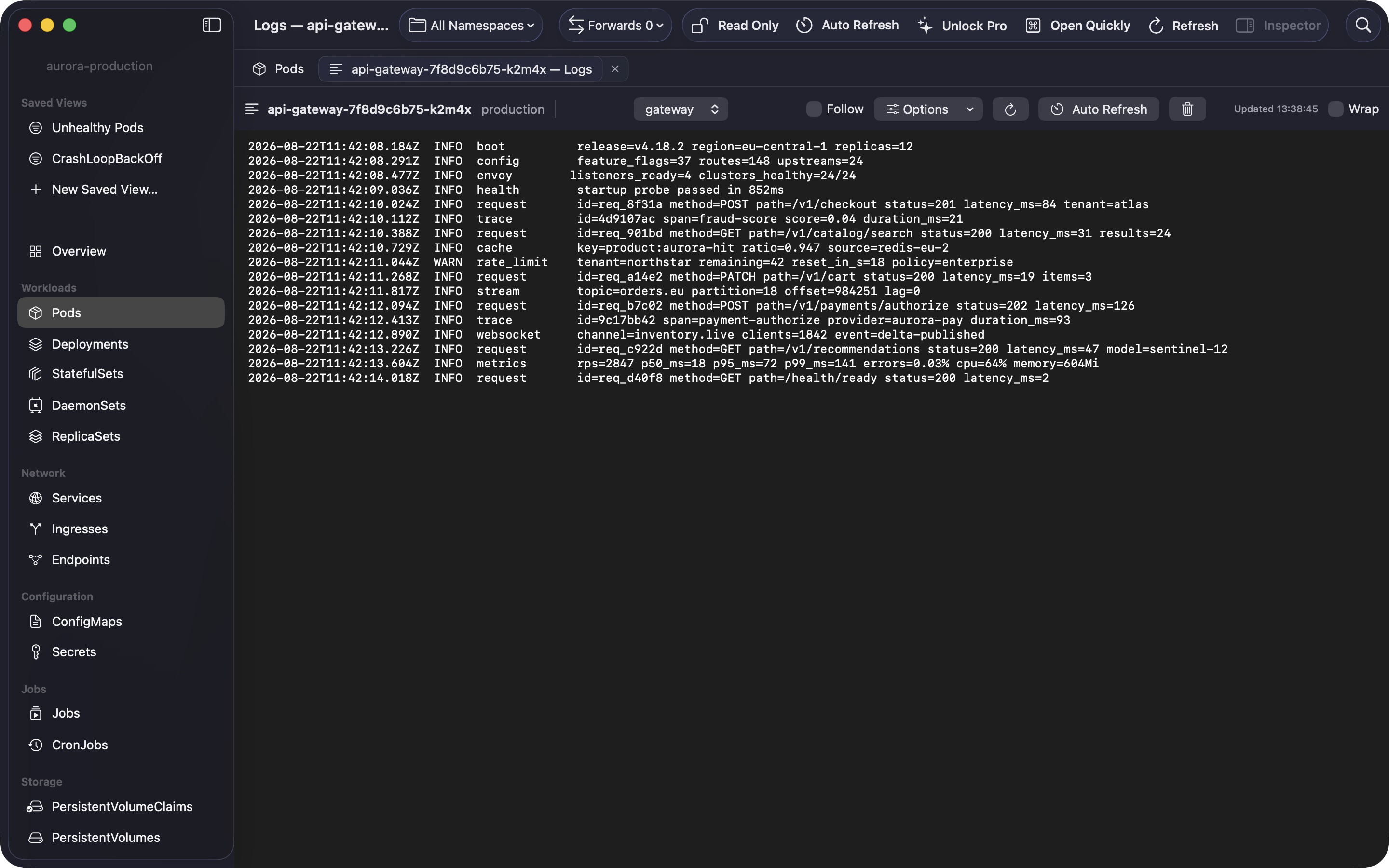
Logs and console
Stream logs from the selected container with follow, time, tail, filter, refresh, and wrapping controls. When the log points to something inside the container, open the integrated console without leaving the workspace.
ClusterDeck Pro
Monthly, yearly, and one-time purchases unlock the same Pro features.
Practical Kubernetes guides
Direct explanations of common Kubernetes tasks and failure modes, with commands, checks, and links to the upstream documentation.
Kubernetes tools on macOS
Pod troubleshooting
Kubernetes logging
Local access to cluster workloads
Cluster access on macOS
Deployment troubleshooting
Capacity and pod reliability
Kubernetes working methods
FAQ
ClusterDeck is a native macOS Kubernetes client for developers, platform engineers, SREs, and cluster operators. It provides a GUI for common inspection and operational tasks alongside kubectl.
No. ClusterDeck does not operate a developer backend and does not upload kubeconfig credentials, resource data, logs, or commands to Radiant Bear Games. Connections go from your Mac to endpoints configured by you.
No. ClusterDeck includes a signed universal kubectl helper and runs inside the macOS App Sandbox. Import authorizes one kubeconfig folder and creates a private flattened copy inside the app container.
Select a pod or workload, choose the local and remote TCP ports, and start the session. ClusterDeck runs kubectl port-forward through its bundled helper, binds the local listener to localhost, and keeps the active mapping visible until you stop it.
The console opens an interactive command session in a selected running container using kubectl exec. It stays in the same workspace as the pod's logs and resource details. The container image must include the shell or command you want to run.
Yes. The built-in sample cluster shows believable local demo resources without credentials or a network connection.
Pro unlocks live logs, pod console, port forwarding, manifest application, rollout and workload actions, ConfigMap editing, auto-refresh, and saved views. Monthly, yearly, and permanent purchases unlock the same features.
Available now