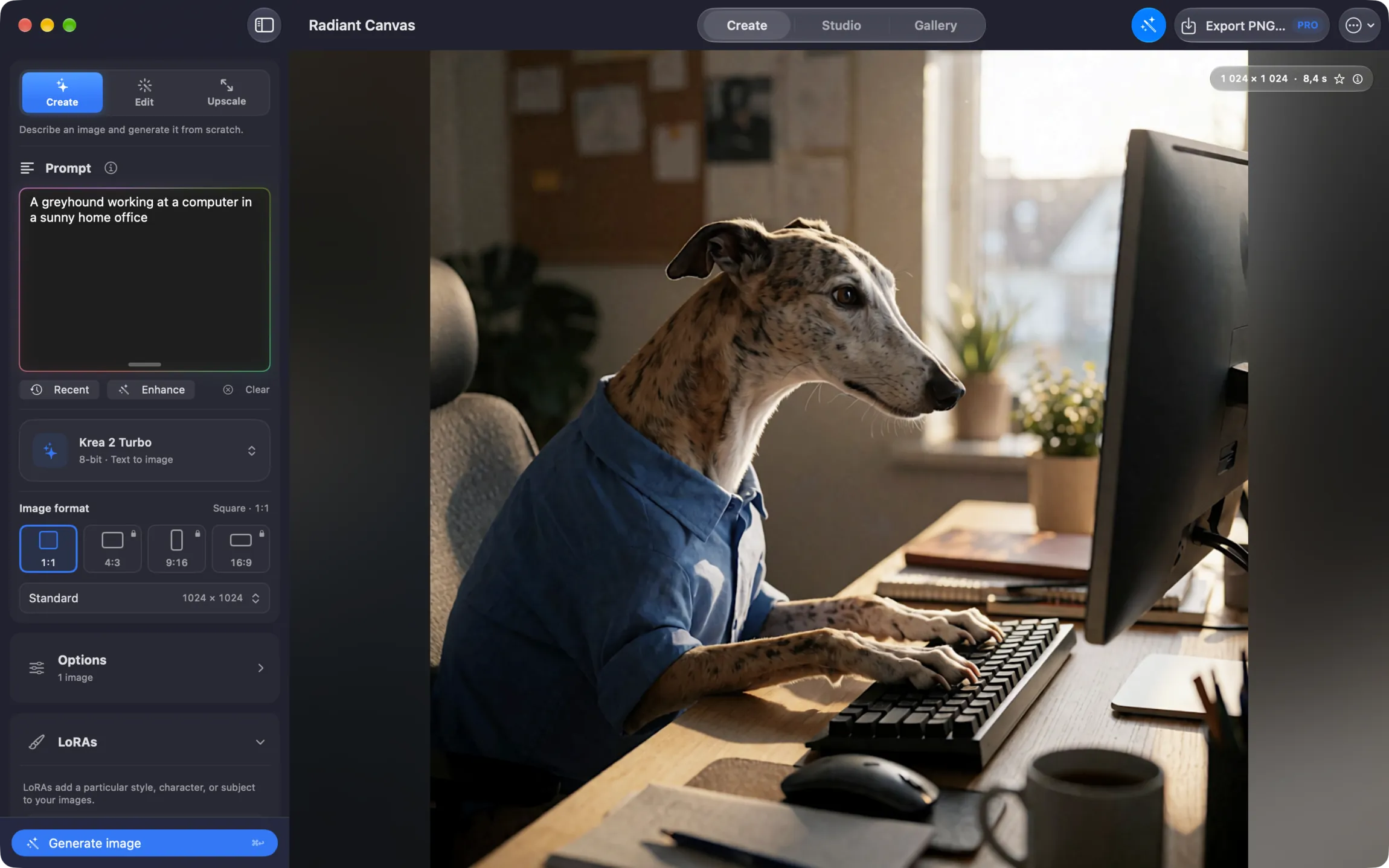
Edit images with Qwen and FLUX.2 Klein. Build advanced workflows in node-based Studio.
Choose from standard and higher-precision models to fit your Mac. Radiant Canvas runs it all on your Mac,
with no cloud processing.
Edit with a promptQwen and FLUX.2 Klein reference image editing
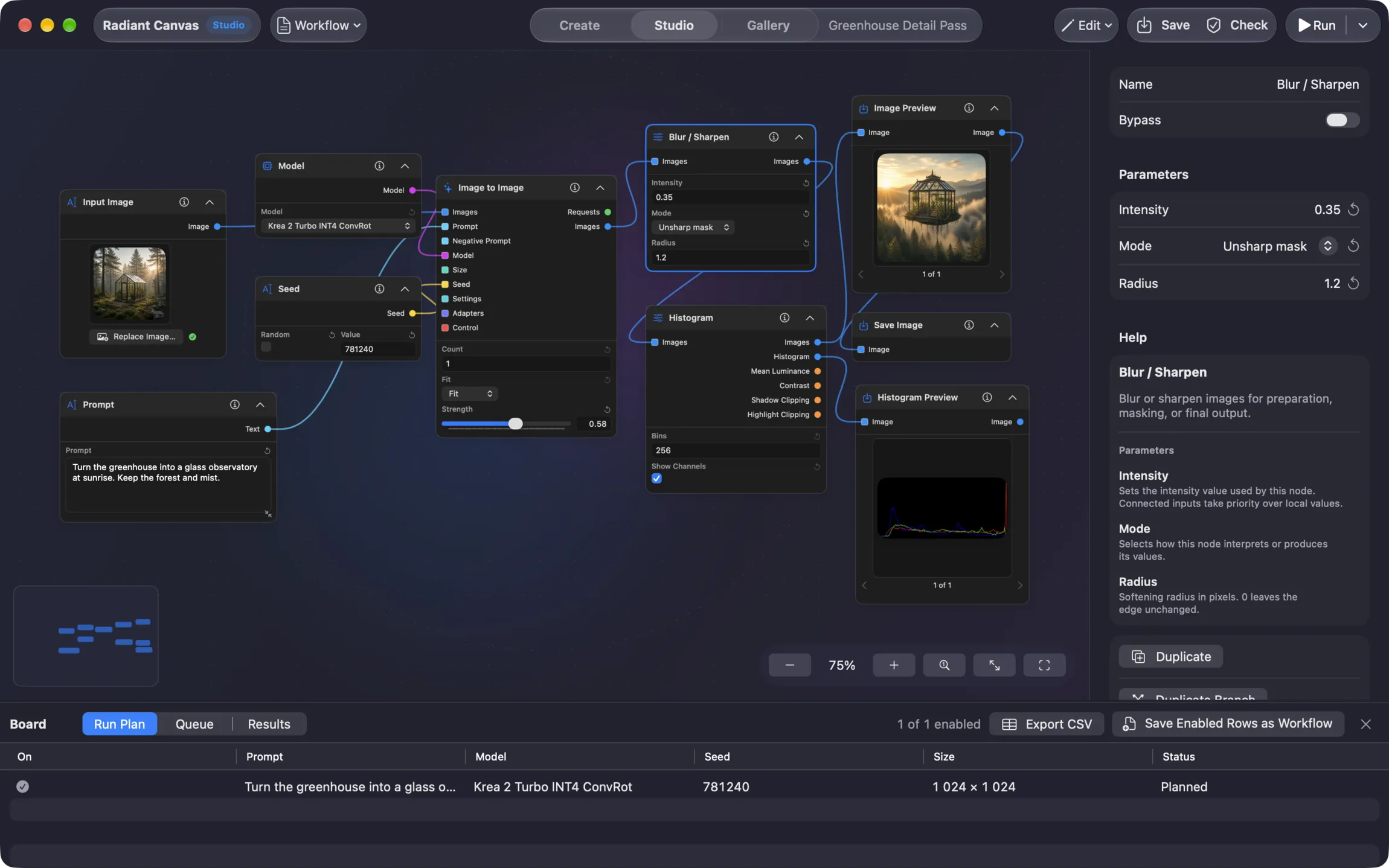
Node-based StudioBuild and reuse advanced image workflows
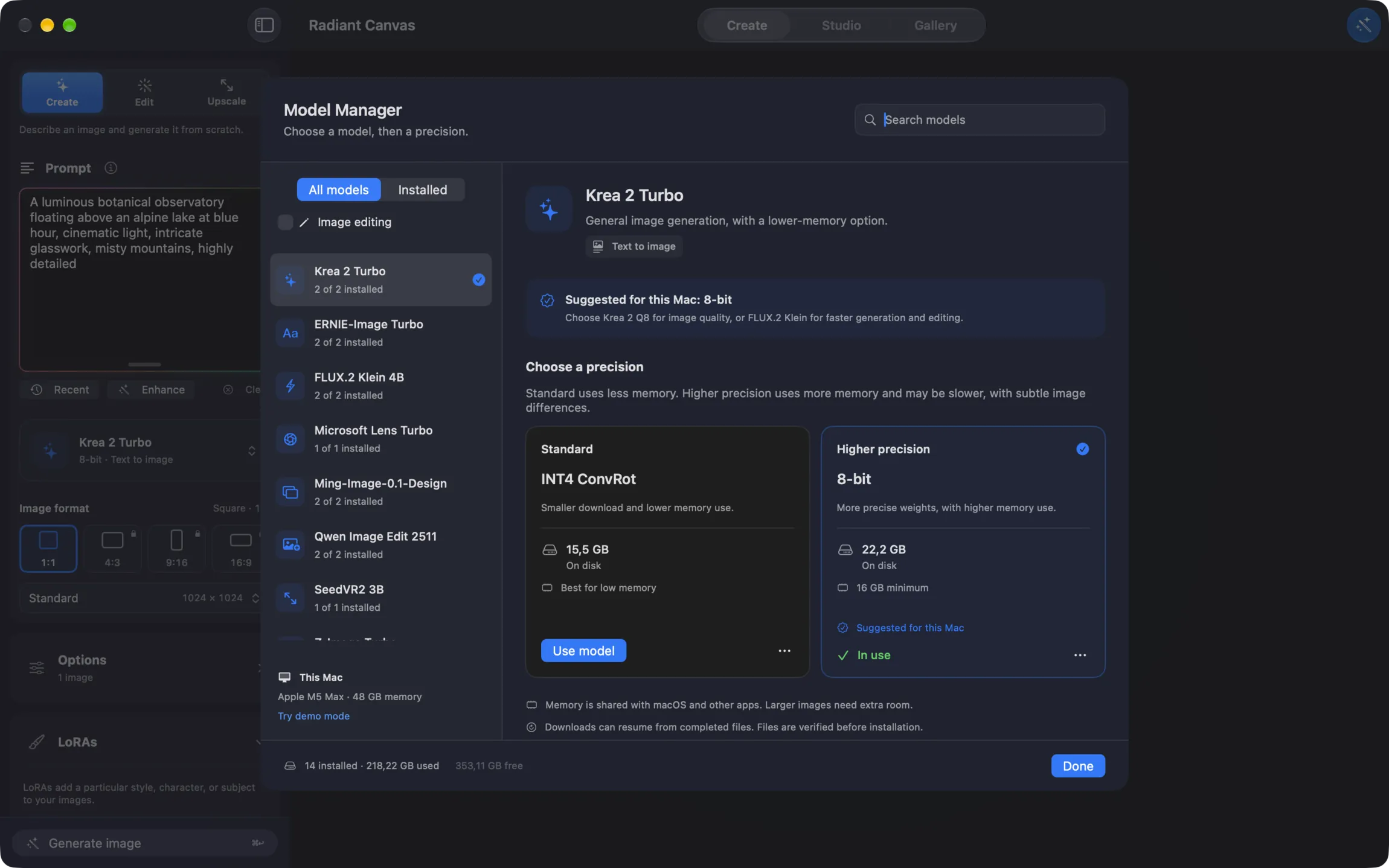
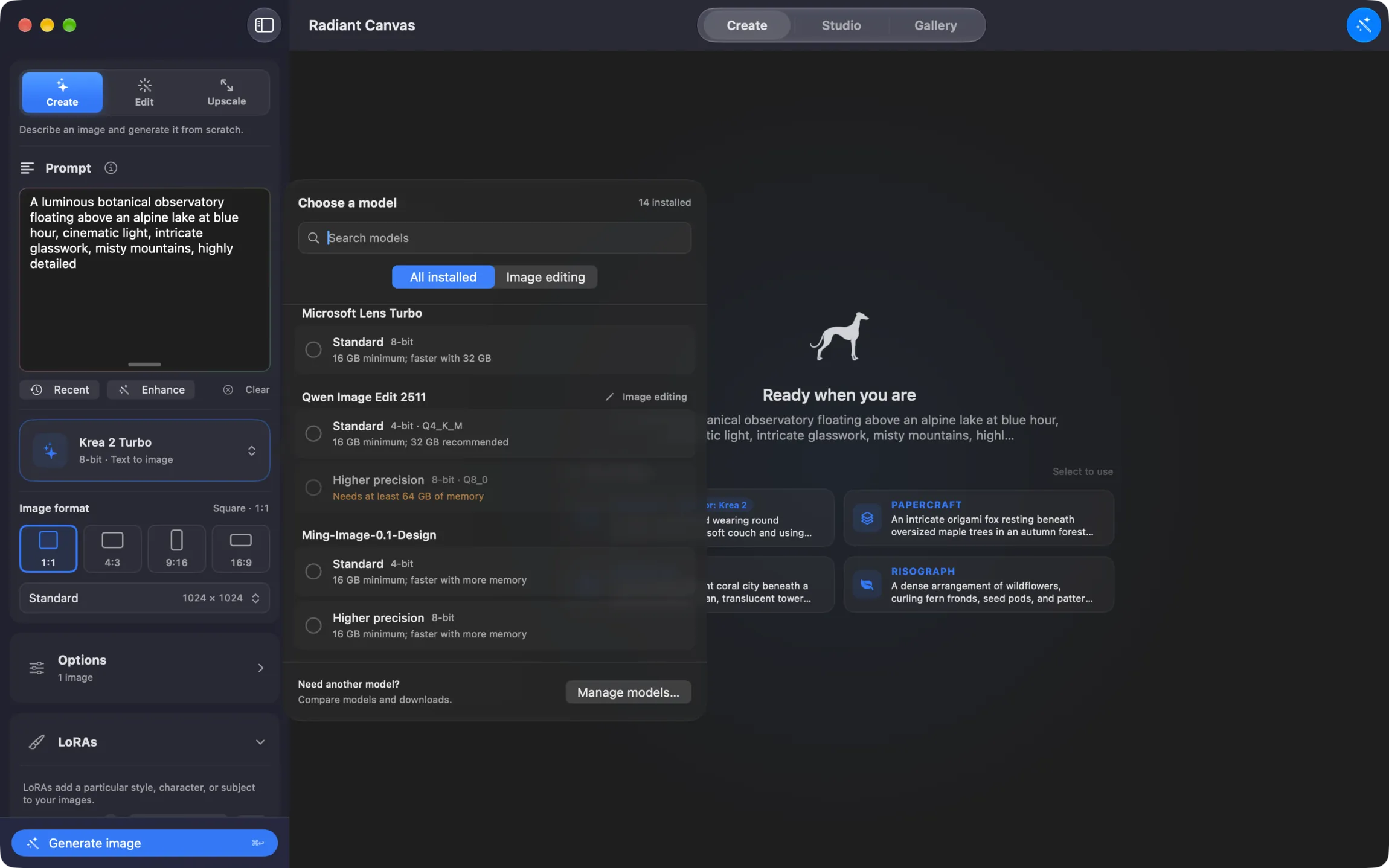
Models that fit your MacSix families with eleven download options
Fully on your deviceNo cloud processing or image uploads
01
Edit images with Qwen and FLUX.2 Klein
Start with an image and describe what to change. Use one reference with FLUX.2 Klein, or up to
three with Qwen Image Edit 2511. Reference editing in Simple is included free.
Connect models, prompts, images, and tools in a visual workflow. Inspect the run plan and save
the setup for later. PRO adds advanced editing, masks, studies, batches, and export nodes.
Standard models use less memory. Higher-precision options keep more information in the model, but need more memory and may be slower. Differences in the images can be subtle. Both tiers are included free.
Generation, reference image editing, and Studio workflows run on your device. Prompts, images,
and results stay there. After downloading your models, work offline with no cloud processing.
Have a picture that is almost right? Add it in Simple and describe the change: a different setting,
softer light, or a new illustration style. Qwen Image Edit 2511 and FLUX.2 Klein use your reference
images and prompt to create a new result, without uploading either to a cloud service.
Reference image editing in Simple is included free.
Bring several references into one edit. Tell Qwen how to use each image, such as a subject from
image 1 and a setting from image 2. It can also generate an image from text alone.
The smallest model download in the app now supports image editing too. Start with one reference,
describe what should change, and try another direction without rebuilding your prompt from scratch.
Choose an editing model. Download Qwen or FLUX.2 Klein in Model Manager,
then select it in Simple. Look for the Edit label.
Add your references. Open Images and add one image for Klein, or up to three
for Qwen.
Describe what to change and what to keep. Generate, review the result,
and adjust your prompt for the next version.
Change the setting
“Place this mug on a wooden table beside a window. Keep its blue glaze and shape.”
Try another style
“Turn this house into a watercolor illustration. Keep the front door and the two upstairs windows.”
Use two references with Qwen
“Place the chair from image 1 in the room from image 2, beside the bookshelf.”
These are prompts to try, not guaranteed results. AI edits can change details you meant
to keep. Be specific and check the result. For a process you can repeat, connect your references to an
Image Edit node in Studio with PRO.
The comparison workflow
Find the model that fits your idea.
Select the models you want to test and start once. Radiant Canvas generates the same prompt with each
model and places the results side by side, so you can choose the strongest result without switching
apps or repeating your setup.
Model comparison is included in the free app.
Model Manager helps you choose what fits your Mac. In Simple, turn on Compare models to try the same prompt with several installed models.
Model Manager
Six model families. Eleven download options.
Choose from six model families: Qwen Image Edit, FLUX.2 Klein, Krea 2, Z-Image, ERNIE-Image, and
Microsoft Lens. Five families offer standard and higher-precision downloads; Lens has one option. Keep the models you
use installed and switch as your project changes.
Choose by what you want to make
Editing with up to three references
Qwen Image Edit 2511
Quick generation and single-image editing
FLUX.2 Klein 4B
Higher-precision Krea generation
Krea 2 Turbo Q8
Realism, prompt accuracy, and clear text
Z-Image Turbo
Multilingual text and detailed layouts
ERNIE-Image Turbo
Fast four-step generation
Microsoft Lens Turbo
Memory-friendly Krea option
Krea 2 Turbo INT4 ConvRot
More choices for Macs with more memory
Alongside Krea 2 Q8, you can now download Z-Image BF16, FLUX.2 Klein 8-bit, ERNIE-Image 8-bit, and Qwen Image Edit 8-bit. Model Manager groups them by family so you can choose a standard or higher-precision version. You can keep both installed.
Higher-precision Krea weights, with a larger download and higher memory use.
Download22.2GB
Fast20.5sStandard26.8s
03
FLUX.2 Klein 4B
4-bit
Fast text-to-image generation and editing with one reference. The smallest download in the app.
Download4.7GB
Fast3.1sStandard6.2s
04
Z-Image Turbo
8-bit
Realistic images, accurate prompts, and clear text.
Download13.3GB
Fast11.2sStandard20.8s
05
Krea 2 Turbo
INT4 ConvRot
A fast, memory-friendly balance with good image quality.
Download15.5GB
Fast15.1sStandard20.2s
06
ERNIE-Image Turbo
4-bit
Detailed layouts and text in many languages.
Download6.7GB
Fast7.5sStandard25.4s
07
Qwen Image Edit 2511
4-bit · Generation and editing
Generate from text or edit with up to three reference images. PRO adds negative prompts and Fast mode for larger images.
Download19.9GB
Min. memory16GB
Recommended32GB
Tests used a 1024 × 1024 image on a MacBook Pro with M5 Max and 48 GB unified
memory. These are text-to-image timings for the exact variants shown, not editing speeds. Qwen and the newly added higher-precision variants have not been measured in this comparison.
Times vary by Mac, settings, image size, and LoRAs. Fast mode requires PRO.
Apple silicon performance
Measured AI image generation speeds onM5
Max
3.1 secondsFLUX.2 Klein 4B in Fast mode at 1024 ×
1024 on the tested M5 Max MacBook Pro with 48 GB.
FastStandard
FLUX.2 Klein 4B
3.1s6.2s
Microsoft Lens
3.4s4.0s
ERNIE-Image
7.5s25.4s
Z-Image
11.2s20.8s
Krea 2 INT4
15.1s20.2s
Krea 2 Q8
20.5s26.8s
Node-based Studio for advanced users
Build the workflow your project needs.
Connect models, prompts, images, seeds, and tools on a visual board. Compare models, plan a batch,
or build a sequence of edits. Inspect the run plan, then save your workflow to use again.
Basic text-to-image workflows are free; running advanced nodes requires PRO.
Try them with the 3-day free trial.
For reference editing, connect Image 1 to an Image Edit node with FLUX.2 Klein,
or add Image 2 and Image 3 with Qwen. PRO also includes image-to-image generation, masked inpainting, model and seed
studies, batches, image grids, and export tools. Depth guidance is available for Krea 2 and Z-Image.
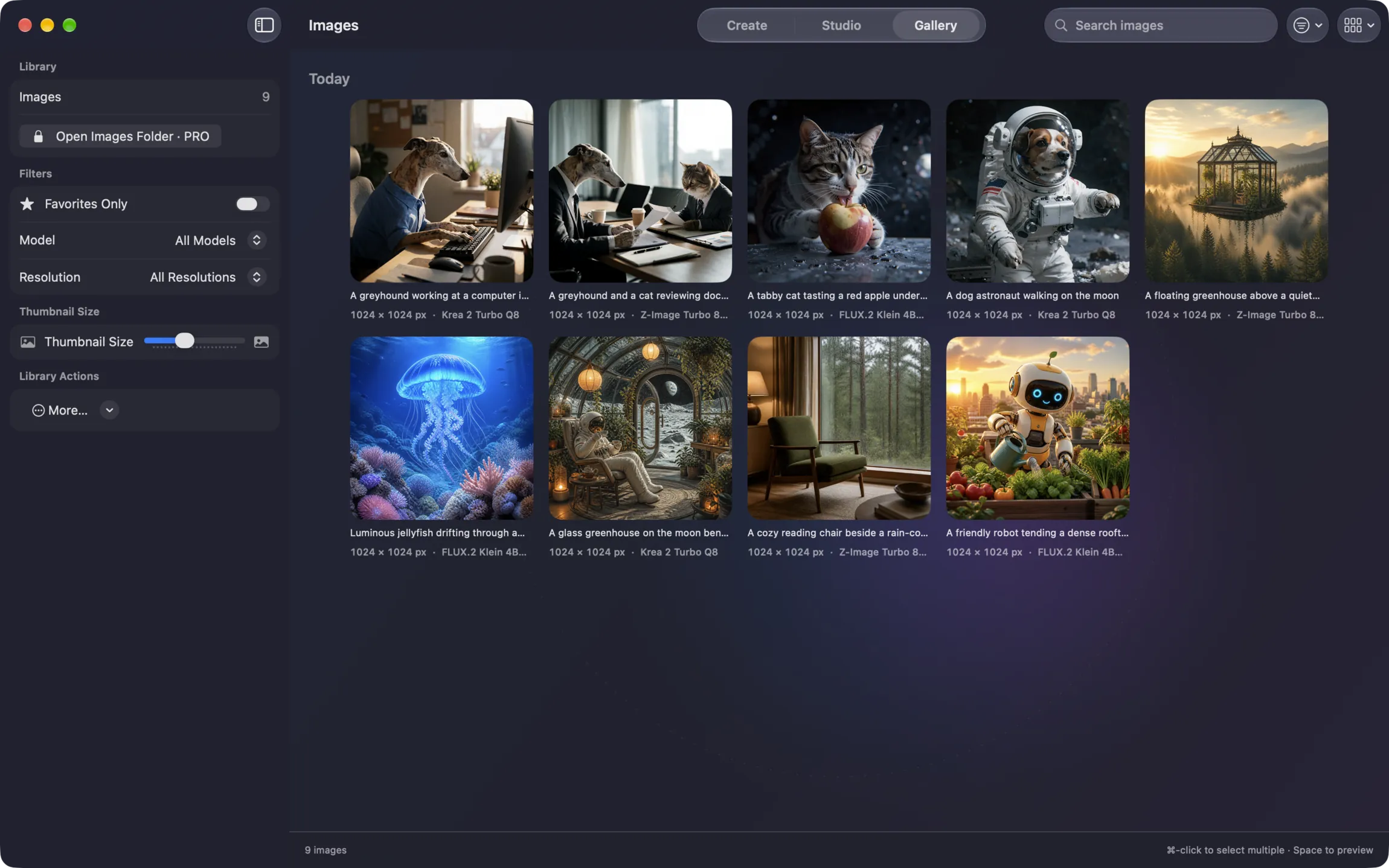
Start from a sample, your Simple settings, or an image in Gallery.
Build visuallyShown here: an image-to-image workflow with sharpening, a histogram, and export.Custom LoRAsPRO adds up to ten adapters and family-specific
presets.Private gallerySearch prompts, filter results, and reuse saved
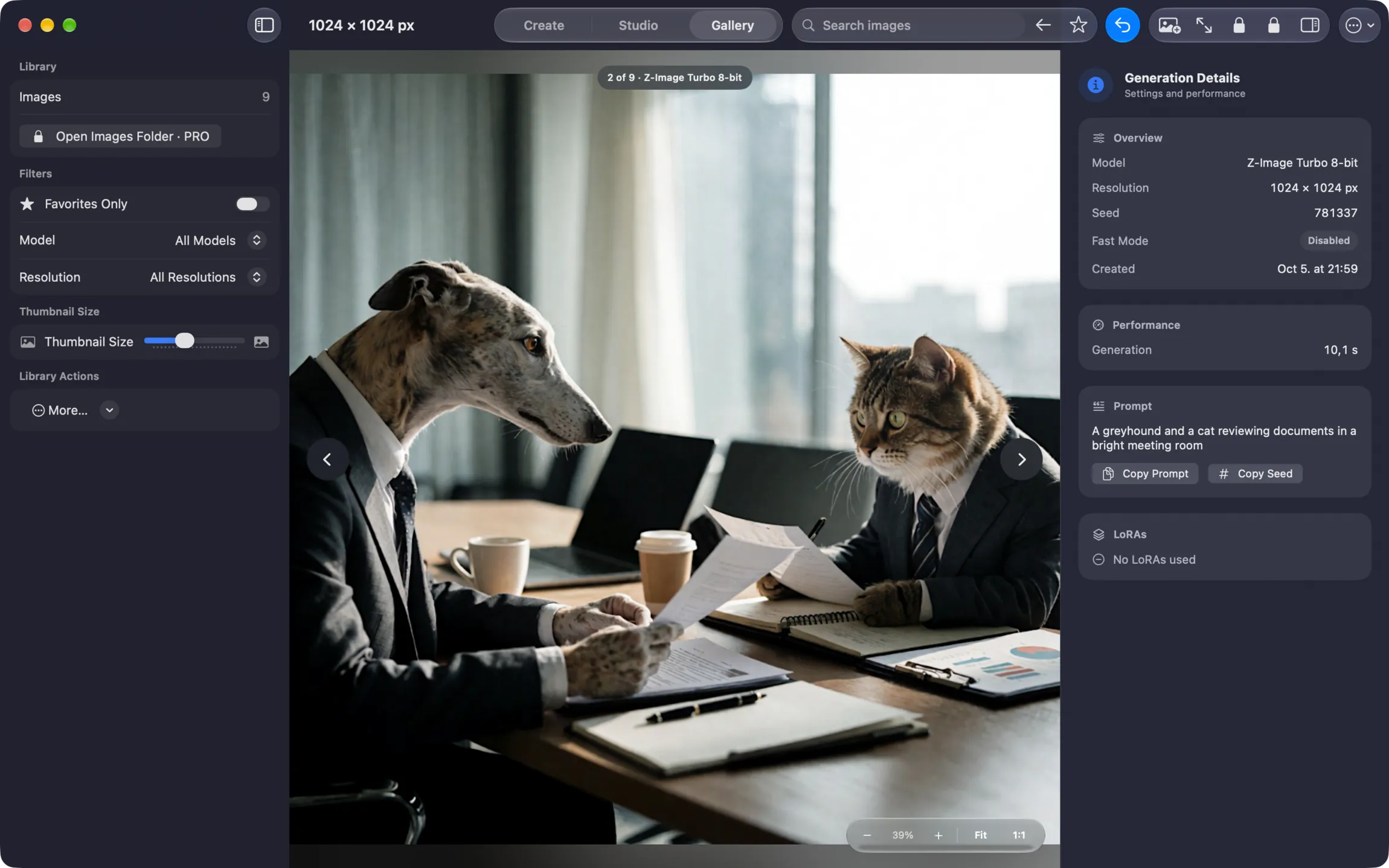
settings.Pick up where you left offInspect a saved image and its generation details before trying the next variation.
Made in Radiant Canvas
A few ideas made on a Mac.
A city under Antarctic ice. A train above the clouds. A palace on a moonlit sea. These images were
generated locally in Radiant Canvas; each caption names the model used.
Every model is included in the free app, along with square generation and reference image editing
in Simple. Compare models, make up to four variations per model, queue up to 24 outputs, and keep
your work in Gallery. PRO adds more formats, controls, custom adapters, and advanced Studio nodes.
Try PRO free for 3 days. The trial is available to eligible customers on the monthly plan.
Choose it in the app to try all PRO features.
Simple reference image editing with Qwen and FLUX.2 Klein
Included
Included
Basic Studio text-to-image workflows
Included
Included
4:3, 9:16, and 16:9 formats
Not included
Included
Manual controls and negative prompts for Z-Image and Qwen
Not included
Included
Fast mode, ML Enhance, and PNG export
Not included
Included
Up to 10 custom LoRA or LoKr adapters
Not included
Included
Advanced Studio nodes for editing, studies, batches, and export
Not included
Included
PRO is available monthly, yearly, or as a one-time lifetime purchase.
The monthly plan includes a 3-day free trial for eligible customers, then renews at the monthly price unless canceled.
Current prices and trial eligibility are shown in the app before you subscribe.
System requirements
Which Macs can run Radiant Canvas?
Radiant Canvas requires an Apple silicon Mac running macOS 26.2 or later. Different models need
different amounts of unified memory and storage. Model Manager shows compatibility guidance and
checks free storage before each download.
Model download and unified memory requirements
Model option
Download
Unified memory
Best suited for
Krea 2 Turbo INT4 ConvRot
15.5 GB
Best option for lower-memory Macs
Balanced Krea quality and memory use
Krea 2 Turbo Q8
22.2 GB
16 GB minimum
Higher-precision Krea generation
Z-Image Turbo 8-bit
13.3 GB
16 GB recommended
Realism, prompt accuracy, clear text
FLUX.2 Klein 4B 4-bit
4.7 GB
16 GB minimum
Fast generation and one-reference editing
ERNIE-Image Turbo 4-bit
6.7 GB
16 GB recommended
Detailed layouts and multilingual text
Microsoft Lens Turbo MLX 8-bit
16.8 GB
16 GB minimum; faster with 32 GB
Fast four-step generation
Qwen Image Edit 2511 4-bit
19.9 GB
16 GB minimum; 32 GB recommended
Text-to-image and editing with up to three references
Z-Image Turbo BF16
20.5 GB
32 GB minimum; 48 GB recommended
Higher-precision Z-Image generation
FLUX.2 Klein 4B 8-bit
8.6 GB
24 GB minimum; 32 GB recommended
Higher-precision generation and one-reference editing
ERNIE-Image Turbo 8-bit
12.4 GB
32 GB minimum; 48 GB recommended
Higher-precision ERNIE generation
Qwen Image Edit 2511 8-bit
31.8 GB
64 GB minimum; 96 GB recommended
Higher-precision generation and editing with up to three references
Intel Macs are not supported. Radiant Canvas is arm64-only and uses Apple silicon.
M1 through M5 Macs are supported. Available memory and model choice matter more than
the chip name. Some newer chips use faster paths, while earlier chips use compatible fallbacks.
8 GB Macs have limited choices. Model Manager recommends the memory-saving Krea 2
INT4 option. Standard Z-Image and ERNIE may run but recommend 16 GB. Krea Q8, Lens, and standard FLUX.2 and Qwen require at least 16 GB. The new higher-precision options require 24 to 64 GB, depending on the model.
Model files stay in Radiant Canvas app storage. They cannot currently be moved to an
external drive. You can delete each model separately and download it again later.
Keep at least the stated download size free. Radiant Canvas checks the additional
space needed, keeps at least a 2 GB allowance for a resumed download, and verifies files before
installation.
Start with one option. Add or remove models later in Model Manager.
1
Install the appThe App Store download does not include model
files.
2
Pick a modelModel Manager shows size, memory guidance, and
license.
3
Create and edit locallyNo uploads or waiting for a cloud service.
Pause and resumeStorage checkFile
verificationDelete separately
Model licenses
Shown before each download.
Krea 2 Community LicenseZ-Image, FLUX.2,
ERNIE, Qwen Apache 2.0Microsoft Lens MIT and Apache 2.0
Questions about AI image generation and editing on Mac
Can I edit an existing image with AI on my Mac?
Yes. In Simple, select FLUX.2 Klein or Qwen Image Edit 2511, add a reference image, and describe what you want to change. Klein accepts one reference image; Qwen accepts up to three. Editing runs locally and is included free within the free image-size options. Review each result, since AI editing can also change details you wanted to keep.
What is the difference between Qwen Image Edit 2511 and FLUX.2 Klein?
Both generate images from text and edit existing images locally. FLUX.2 Klein 4B uses one reference image and has a smaller download of about 4.7 GB. Qwen Image Edit 2511 uses up to three references and has a 4-bit download of about 19.9 GB. These standard variants require at least 16 GB of unified memory; Qwen recommends 32 GB. Higher-precision 8-bit variants are also available: Klein needs at least 24 GB and Qwen needs 64 GB. PRO adds Qwen negative prompts and Fast mode for larger images.
Is Qwen and FLUX.2 Klein image editing free?
Yes. Both models and reference image editing in Simple are included in the free app, within free square image sizes. Running the Image Edit node in Studio requires PRO. There are no per-image charges or cloud credits.
Does Radiant Canvas upload my prompts or images?
No. Prompts, reference images, image generation and editing, results, Gallery data, settings, and imported LoRAs stay on your Mac. Model downloads come from Hugging Face or a mirror. Apple handles App Store purchases and the optional ML Enhance model. The app has no analytics, telemetry, tracking, account, or developer backend. This website uses optional consent-based analytics separately.
Does Radiant Canvas work on M1, M2, M3, M4, and M5 Macs?
Yes, if the Mac runs macOS 26.2 or later and has enough unified memory for the selected model. Intel Macs are not supported. Performance varies by chip, memory, model, image size, and settings.
How much unified memory do I need?
Krea 2 Q8, FLUX.2 Klein 4B, Microsoft Lens Turbo, and Qwen Image Edit in their standard variants require at least 16 GB. Qwen recommends 32 GB. Z-Image and ERNIE-Image recommend 16 GB. Krea 2 INT4 is the app’s recommended lower-memory option. Higher-precision FLUX.2 needs at least 24 GB, Z-Image BF16 and ERNIE 8-bit need 32 GB, and Qwen 8-bit needs 64 GB. Model Manager shows guidance before download.
How much storage does each model use?
Approximate downloads range from 4.7 GB for FLUX.2 Klein 4-bit to 31.8 GB for Qwen Image Edit 8-bit. The requirements table above lists every option. The app checks the remaining space needed before it starts or resumes a download.
Can model files be stored on an external drive?
Not currently. Model files are stored in Radiant Canvas app storage. You can delete models separately in Model Manager and download them again later without deleting Gallery images.
Can Radiant Canvas work offline?
Yes. Generation and reference image editing work offline after your chosen models are installed. New model downloads, App Store purchases and restoration, and the first download of Apple’s optional ML Enhance model require a connection.
Is Radiant Canvas a Stable Diffusion app?
No. Its six model families are Krea 2, Z-Image, FLUX.2 Klein, ERNIE-Image, Microsoft Lens, and Qwen Image Edit. Five families have standard and higher-precision variants, making eleven downloadable options in total.
Can I use generated images commercially?
Model licenses differ. Radiant Canvas shows the relevant license before each download. Review that license and any adapter license for your intended use. The app does not make one blanket commercial-use guarantee for every model and LoRA.
What is the difference between Krea 2 Q8 and INT4 ConvRot?
Q8 is the larger, higher-precision option and requires at least 16 GB of unified memory. INT4 ConvRot is smaller and is the app’s recommended Krea option for lower-memory Macs.
Does Radiant Canvas support custom LoRAs and LoKr adapters?
Yes. PRO can add up to ten compatible LoRA or LoKr adapters and save presets for each model family.
What can I build in Studio?
Studio is a visual workspace for repeatable local image workflows. Connect typed nodes, preview images, inspect the run plan, and save workflows for later. Basic text-to-image workflows are free. PRO adds advanced nodes for image input and editing, masks, studies, batches, ControlNet guidance, enhancement, metadata, and export.
Do I need to pay to generate images?
No. The free app includes all eleven model options, square generation, reference image editing in Simple, one-prompt model comparison, one to four variations per model, a queue of up to 24 outputs, prompt history, metadata, watermarks, and the local Gallery. It also includes basic Studio text-to-image workflows.
Getting started
Guides to local AI images on Mac
Learn how offline generation works, use FLUX.2 Klein, compare models, and check what is included free.
Independent Mac software
Built independently for the Mac
Radiant Canvas is developed by Arnold Sallay at Radiant Bear Games. Its image model runtimes are
built for Apple silicon and generation jobs are not sent to a remote API.
Free on the Mac App Store
Make your first image. Then try another direction.
Edit with Qwen or FLUX.2 Klein, build in node-based Studio, and create with Krea 2.
All on your Mac, with no cloud processing. Start free, or try PRO free for 3 days with an eligible monthly subscription.
 Radiant Canvas